
 By concept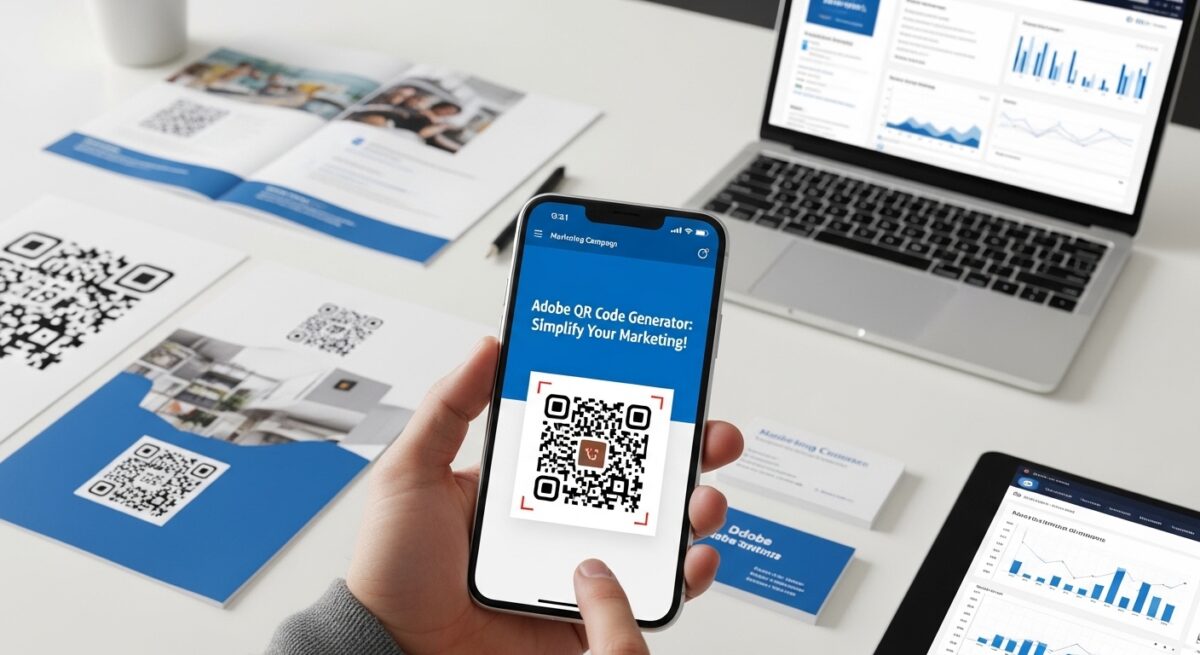
QR codes are everywhere. From restaurant menus to product packaging, these little squares have become a vital part of modern marketing and communication. Because of their ubiquity, finding the right QR code generator is essential. Adobe, a leader in creative software, offers solutions for creating and managing QR codes effectively. So, let’s explore how to leverage the Adobe QR code generator to boost your marketing efforts.
What is an Adobe QR Code Generator?
An Adobe QR code generator allows you to create custom QR codes directly within the Adobe Creative Suite. While Adobe doesn’t offer a standalone “Adobe QR Code Generator” application, the functionality is often integrated into tools like Adobe Illustrator and Adobe InDesign. This integration streamlines the design process, so you can easily incorporate QR codes into your marketing materials. In fact, you can generate and customize QR codes without leaving your favorite Adobe applications.
Benefits of Using Adobe for QR Code Generation
Using Adobe for QR code generation offers several advantages:
- Seamless Integration: Integrate QR codes directly into your design workflow within Adobe Creative Suite.
- Customization: Customize the appearance of your QR codes to match your brand aesthetic.
- High-Quality Output: Generate high-resolution QR codes suitable for print and digital media.
- Dynamic QR Codes: Some Adobe integrations support dynamic QR codes, allowing you to update the linked content without changing the code itself.
- Tracking and Analytics: Integrate with analytics platforms to track QR code scans and measure campaign performance.
How to Generate a QR Code in Adobe Illustrator
Adobe Illustrator is a popular choice for designers who need precise control over their artwork. Here’s how you can generate a QR code in Illustrator:
- Install a QR Code Generator Script or Plugin: Since Illustrator doesn’t have a built-in QR code generator, you’ll need to install a script or plugin. Several free and paid options are available online.
- Prepare Your Document: Open or create the document where you want to add the QR code.
- Run the Script or Plugin: Access the QR code generator script or plugin from the Scripts menu (File > Scripts) or the plugin panel.
- Enter the URL or Data: Input the URL or data you want the QR code to link to.
- Customize the QR Code (Optional): Many scripts and plugins allow you to customize the color, size, and appearance of the QR code.
- Generate the QR Code: Click the “Generate” button to create the QR code.
- Place and Adjust: Position the QR code in your document and adjust its size as needed.
- Test the QR Code: Always test the QR code with a QR code scanner app to ensure it works correctly.
How to Generate a QR Code in Adobe InDesign
Adobe InDesign is ideal for creating multi-page documents and layouts. Although it lacks a native QR code generator, you can use plugins or online services to integrate QR codes seamlessly.
- Install a QR Code Generator Plugin: Find and install a reputable QR code generator plugin for InDesign.
- Open Your Document: Launch InDesign and open the document you’re working on.
- Access the Plugin: Locate the QR code generator plugin in the Window > Extensions menu.
- Enter the URL or Data: Enter the URL or other information you want to encode in the QR code.
- Customize the QR Code (If Available): Some plugins offer customization options, such as color and size.
- Generate the QR Code: Click the “Generate” button to create the QR code.
- Place the QR Code: Drag and drop the QR code into your document where desired.
- Adjust Size and Position: Resize and position the QR code to fit your layout.
- Test the QR Code: Use a QR code scanner on your smartphone to verify that the QR code functions correctly.
Free vs. Paid QR Code Generators: What’s the Difference?
You have many choices when it comes to QR code generators. Free generators are great for basic needs, but paid options often come with more features and flexibility. Here’s a comparison:
Free QR Code Generators
- Cost: Free to use.
- Features: Typically offer basic QR code generation with limited customization options.
- Limitations: May include watermarks, limited scan tracking, and fewer design options.
- Use Case: Suitable for simple, one-time QR code needs where advanced features aren’t required.
Paid QR Code Generators
- Cost: Require a subscription or one-time purchase.
- Features: Provide advanced customization options, dynamic QR codes, detailed scan analytics, and no watermarks.
- Limitations: Involve a cost, but the enhanced features often justify the investment for business use.
- Use Case: Ideal for marketing campaigns, business cards, and situations where tracking and brand consistency are important.
Best Practices for Using QR Codes in Marketing
To make the most of your QR codes, follow these best practices:
- Make Sure They Work: Always test your QR codes before publishing them to ensure they scan correctly and lead to the intended destination.
- Design Matters: Customize your QR codes to align with your brand’s visual identity. Use colors, logos, and shapes that complement your brand.
- Provide Value: Make sure the content behind the QR code is valuable and relevant to your audience. Examples include exclusive discounts, helpful information, or entertaining content.
- Placement is Key: Position your QR codes in locations where they are easily visible and accessible. Consider the viewing distance and angle.
- Track Performance: Use QR code analytics to monitor scan rates, location data, and other metrics. Use this information to optimize your campaigns.
- Mobile-Friendly Content: Ensure that the content linked to your QR code is optimized for mobile devices, providing a seamless user experience.
- Add a Call to Action: Clearly instruct users what to do with the QR code. For example, “Scan to Learn More” or “Scan for a Discount.”
Alternative QR Code Generators
While integrating QR codes into Adobe products is convenient, several standalone QR code generators are available. Here are a few popular alternatives:
- QR Code Monkey: A free online QR code generator with customization options.
- The QR Code Generator: Offers both free and paid plans with advanced features.
- Beaconstac: Provides dynamic QR codes with detailed analytics and integrations.
- Visualead: Allows you to create visually appealing QR codes with your logo embedded.
QR Code Security Considerations
QR codes are generally safe, but they can be exploited by malicious actors. Therefore, you must be careful when scanning QR codes from unknown sources. Always verify the URL or content before proceeding, and use a reputable QR code scanner app with security features. Moreover, educate your audience about QR code security to prevent them from falling victim to scams.
Future Trends in QR Code Technology
QR code technology continues to evolve, with new applications and integrations emerging regularly. Some future trends include:
- Augmented Reality (AR): QR codes can trigger AR experiences, providing interactive and immersive content.
- Mobile Payments: QR codes are increasingly used for mobile payments, offering a convenient and secure alternative to traditional payment methods.
- Supply Chain Management: QR codes are used to track products throughout the supply chain, improving transparency and efficiency.
- Healthcare: QR codes provide patients with access to medical records, appointment scheduling, and medication information.
Conclusion
Using the Adobe QR code generator, or other solutions, can significantly enhance your marketing efforts. By following the tips and best practices outlined here, you can create effective QR codes that engage your audience and drive results. Always prioritize security, provide value, and test your QR codes thoroughly to ensure a positive user experience. As QR code technology evolves, staying informed about the latest trends will help you leverage this versatile tool to its fullest potential. So, start creating and integrating QR codes into your marketing strategy today!
Frequently Asked Questions (FAQ)
1. Is there a direct Adobe QR Code Generator software?
No, Adobe does not offer a standalone QR code generator application. However, you can use plugins or scripts within Adobe Illustrator and InDesign to create QR codes.
2. How can I customize my QR code within Adobe Illustrator?
Install a QR code generator script or plugin, and then use the customization options provided by the script to change the color, size, and appearance of the QR code.
3. Are dynamic QR codes better than static QR codes?
Dynamic QR codes are often better for marketing campaigns because they allow you to change the linked content without altering the QR code itself, and they provide scan analytics.
4. What should I do if my QR code isn’t scanning correctly?
First, make sure the QR code is clear and not distorted. Check that the linked URL is valid and accessible. Adjust the size and contrast of the QR code if necessary, and test it with multiple QR code scanner apps.
5. Can I track how many times my QR code has been scanned?
Yes, if you use a QR code generator that offers tracking and analytics features. These features provide insights into scan rates, location data, and other valuable metrics.